Input and Output
Up to now, our programs have been running on their own — displaying text that we pre-determined. But a truly useful program can interact with the user. The program asks, the user answers, and the program responds based on that answer.
In this lesson, we’ll learn the two main communication tools in C++: std::cout for output (displaying) and std::cin for input (receiving).
Diving Deeper into std::cout (Output)
We’ve already met std::cout in previous lessons. Now let’s understand it more thoroughly.
std::cout is a character output stream — a flow of data from the program to the screen. Think of it like a water hose: you “push” data through the hose, and it comes out the other end (the screen).
The << Operator — “Send To”
The << operator is called the insertion operator. Read it as: “send to”. The data on the right is “sent to” cout on the left.
std::cout << "Hello";     // "Send 'Hello' to the screen"
std::cout << 42;          // "Send the number 42 to the screen"
std::cout << 3.14;        // "Send 3.14 to the screen"
You can chain multiple pieces of data in a single statement:
std::cout << "My age is " << 17 << " years" << std::endl;This reads: send “My age is ” to the screen, then send 17, then send ” years”, then send endl (new line).
Output:
My age is 17 yearsDisplaying Variables
std::cout can display variable values directly:
#include <iostream>
#include <string>

int main() {
    std::string name = "Dian";
    int age = 16;
    double height = 158.5;

    std::cout << "Name: " << name << std::endl;
    std::cout << "Age: " << age << " years" << std::endl;
    std::cout << "Height: " << height << " cm" << std::endl;

    return 0;
}
Output:
Name: Dian
Age: 16 years
Height: 158.5 cm
std::endl vs "\n"
Both create a new line, but there’s an important difference:
std::endl
std::cout << "Line one" << std::endl;
std::cout << "Line two" << std::endl;
std::endl does two things:
- Adds a newline character
- Flushes the buffer (forces all data to be immediately displayed on screen)
"\n" or '\n'
std::cout << "Line one\n";
std::cout << "Line two\n";
\n only adds a newline character, without flushing the buffer. This is slightly faster than std::endl.
When to use which?
"\n"— for most cases, it’s fasterstd::endl— when you need the output to appear immediately (e.g., before the program asks for input, or when debugging)
For these lessons, either one is fine. The performance difference only matters in programs that produce a very large amount of output.
Comparison
#include <iostream>

int main() {
    // Using endl
    std::cout << "One" << std::endl;
    std::cout << "Two" << std::endl;

    // Using \n
    std::cout << "Three\n";
    std::cout << "Four\n";

    // Mixing is fine too
    std::cout << "Five" << "\n";

    return 0;
}
Output (identical for both methods):
One
Two
Three
Four
Five
std::cin — Receiving Input
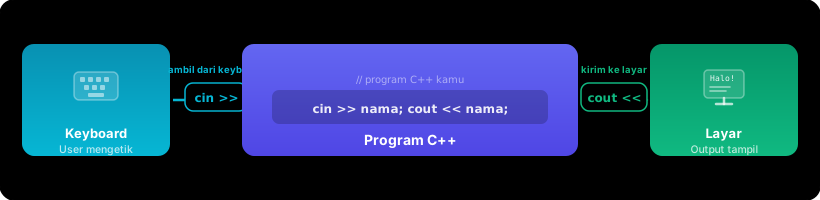
Now for the exciting part: making a program that can receive input from the user!
std::cin is a character input stream — a flow of data from the keyboard to the program. If cout is a megaphone (speaking outward), cin is a microphone (listening from the outside).
The >> Operator — “Extract From”
The >> operator is called the extraction operator. Read it as: “extract from”. Data is extracted from cin (the keyboard) and stored in the variable on the right.
int age;
std::cin >> age;    // "Extract input from the keyboard, store it in the variable 'age'"
Notice the direction of the arrows:
cout <<— arrow points towardcout(send data TO the screen)cin >>— arrow points away fromcin(extract data FROM the keyboard)
Example: Greeting Program
#include <iostream>
#include <string>

int main() {
    std::string name;

    std::cout << "What is your name? ";
    std::cin >> name;

    std::cout << "Hello, " << name << "! Happy learning C++!" << std::endl;

    return 0;
}
When run:
What is your name? Budi
Hello, Budi! Happy learning C++!
The program pauses at the std::cin >> name; line — waiting for the user to type something and press Enter. After that, the program continues to the next line.
Input with Multiple Values
You can ask for multiple inputs one by one:
#include <iostream>
#include <string>

int main() {
    std::string name;
    int age;

    std::cout << "Enter name: ";
    std::cin >> name;

    std::cout << "Enter age: ";
    std::cin >> age;

    std::cout << "\nResult:" << std::endl;
    std::cout << "Name: " << name << std::endl;
    std::cout << "Age: " << age << " years" << std::endl;

    return 0;
}
Or chain multiple >> in a single line:
int a, b;
std::cout << "Enter two numbers: ";
std::cin >> a >> b;  // User types: 5 10 (separated by space)
When the user types 5 10 and presses Enter, a will contain 5 and b will contain 10. cin uses spaces/enters as delimiters between inputs.
getline() — Reading Text with Spaces
There’s one problem with cin >>: it stops reading when it encounters a space. So if the user types “Budi Santoso”, cin >> only captures “Budi”.
To read the entire line (including spaces), use std::getline():
#include <iostream>
#include <string>

int main() {
    std::string fullName;

    std::cout << "Enter your full name: ";
    std::getline(std::cin, fullName);

    std::cout << "Hello, " << fullName << "!" << std::endl;

    return 0;
}
Enter your full name: Budi Santoso
Hello, Budi Santoso!getline() reads the entire line until the user presses Enter, including any spaces in between.
Be careful when mixing cin >> and getline()! After cin >>, there’s a newline character (\n) left behind in the buffer. getline() will read that leftover newline and finish immediately (producing an empty string). The solution: add std::cin.ignore() before getline().
int age;
std::cin >> age;
std::cin.ignore();  // Discard the leftover newline

std::string name;
std::getline(std::cin, name);  // Now reads correctly
Full Example Program: Bio Data
#include <iostream>
#include <string>

int main() {
    // Variables to store data
    std::string name;
    int age;
    double height;
    std::string city;

    // Ask for user input
    std::cout << "=== Bio Data Program ===" << std::endl;
    std::cout << std::endl;

    std::cout << "Full name: ";
    std::getline(std::cin, name);

    std::cout << "Age: ";
    std::cin >> age;

    std::cout << "Height (cm): ";
    std::cin >> height;

    std::cin.ignore();  // Clear buffer before getline

    std::cout << "Home city: ";
    std::getline(std::cin, city);

    // Display results
    std::cout << "\n=== Your Bio Data ===" << std::endl;
    std::cout << "Name   : " << name << std::endl;
    std::cout << "Age    : " << age << " years" << std::endl;
    std::cout << "Height : " << height << " cm" << std::endl;
    std::cout << "City   : " << city << std::endl;
    std::cout << "=====================" << std::endl;

    return 0;
}
Example interaction:
=== Bio Data Program ===

Full name: Rina Sari
Age: 16
Height (cm): 162.5
Home city: Bandung

=== Your Bio Data ===
Name   : Rina Sari
Age    : 16 years
Height : 162.5 cm
City   : Bandung
=====================
I/O Operator Summary
| Operator | Name | Direction | Example |
|---|---|---|---|
<< | Insertion | Program -> Screen | cout << "Hello" |
>> | Extraction | Keyboard -> Program | cin >> age |
How to remember the direction:
<<arrow points towardcout(output, going out)>>arrow points toward the variable (input, coming in)
Direction of I/O Operators
Simple Output Program
Exercises
Exercise 1: Create a program that asks for 2 integer inputs from the user, then displays both numbers.
Example interaction:
Enter first number: 7
Enter second number: 13
First number: 7
Second number: 13
Exercise 2: Create a “Q&A” program that asks the following 3 questions and displays a summary:
- Favorite food (string with getline)
- How many times you eat per day (int)
- Whether you like cooking (type 1 for yes, 0 for no)
Summary
std::cout <<displays output on screenstd::cin >>receives input from the keyboard<<reads as “send to”,>>reads as “extract from”std::endlcreates a new line and flushes the buffer"\n"creates a new line without flushing (faster)std::getline()reads complete text including spaces- Be careful mixing
cin >>andgetline()— usecin.ignore()
In the next lesson, we’ll learn about arithmetic operations — how to make programs that can calculate!