Environment Setup
Before we start writing C++ code, we need to set up our “kitchen” first. A chef needs a stove, pans, and knives — a programmer needs a text editor and a compiler.
The good news: you have several options, from the easiest to the most comprehensive. Let’s go through each one.
Option 1: The Website Playground (Recommended!)
For beginners, we highly recommend using the playground built into this website. No installation needed — you can start coding directly in your browser!
The playground is a code editor embedded right in this website. You can write C++ code, run it, and see the results — all on one page, without installing any software.
Why is the playground recommended for beginners?
- Zero setup — no downloads or installations needed
- Instant start — open your browser, write code, click Run
- Safe — code runs in an isolated environment, nothing on your computer can break
- Optimized — syntax highlighting, clear error messages
- Mobile-friendly — learn anywhere, even from your phone
You’ll learn how to use the playground in detail in the next lesson. For now, try running your first program:
#include <iostream>

int main() {
    std::cout << "Hello, World!" << std::endl;
    return 0;
}
If you see Hello, World! in the output area — congratulations! You just ran your first C++ program!
Don’t understand the code yet? That’s perfectly fine! We’ll break down every line in Unit 1. What matters right now is that you can run it.
Option 2: Install on Your Computer (Windows)
If you want a more “serious” setup on your own machine, you can install a C++ compiler locally. This gives you full control and works without an internet connection.
Option A: MSYS2 + MinGW (Recommended for Windows)
MSYS2 is an environment that provides the GCC/G++ compiler for Windows.
Steps:
- Download MSYS2 from msys2.org
- Install — run the installer and follow the prompts (use the default location
C:\msys2) - Open the MSYS2 terminal that was just installed
- Update the package manager:
(If prompted to close the terminal, close it, reopen, and run the command again)pacman -Syu - Install the C++ compiler:
pacman -S mingw-w64-ucrt-x86_64-gcc - Add to PATH:
- Open Windows Settings → System → About → Advanced system settings
- Click “Environment Variables”
- Under “System variables”, find
Path, click Edit - Add:
C:\msys2\ucrt64\bin - Click OK on all dialogs
- Verify installation — open a new Command Prompt and type:
If GCC version info appears, the installation was successful!g++ --version
Option B: Visual Studio Community (Windows Alternative)
Microsoft Visual Studio Community is a full IDE that includes the C++ compiler (MSVC).
- Download from visualstudio.microsoft.com
- During installation, check “Desktop development with C++”
- Wait for the download to complete (can be 5-10 GB)
- Open Visual Studio, create a new project → Console App (C++)
Visual Studio Community is large (5-10 GB). If your internet connection is limited, use MSYS2 or the website playground instead.
How to Compile and Run from the Terminal
After installing a compiler, here’s how to run a C++ program from the terminal:
-
Create a file named
hello.cppusing any text editor (Notepad, VS Code, etc.):#include <iostream> int main() { std::cout << "Hello from my computer!" << std::endl; return 0; } -
Open a terminal (Command Prompt / PowerShell) and navigate to the folder where the file is saved:
cd C:\Users\YourName\Documents -
Compile:
g++ hello.cpp -o helloThis translates
hello.cppinto a program calledhello.exe. -
Run:
helloor
./hello
If everything works, you’ll see:
Hello from my computer!Recommended Text Editors
If you’re coding locally, use a text editor with syntax highlighting (color-coded keywords) to make code easier to read:
- Visual Studio Code (VS Code) — free, lightweight, great C++ extensions. Download from code.visualstudio.com. Install the “C/C++” extension by Microsoft.
- Notepad++ — very lightweight, great for lower-spec computers
- Sublime Text — fast and elegant
If using VS Code, install the “Code Runner” extension so you can run C++ programs directly from the editor by pressing the play button.
Option 3: Online Compilers
If you can’t install software but want an alternative to this website’s playground, there are several online compilers available:
OnlineGDB
- Go to onlinegdb.com
- Select C++ from the language dropdown in the top right
- Write your code in the editor
- Click Run
Compiler Explorer (Godbolt)
- Go to godbolt.org
- More advanced — lets you see the assembly output
- Great for learning how compilers work under the hood
Replit
- Go to replit.com
- Create an account (free)
- Create a new Repl with the C++ template
- Full IDE in your browser
Comparison of Options
| Aspect | Website Playground | Local Install | Online Compiler |
|---|---|---|---|
| Requires install? | No | Yes | No |
| Requires internet? | Yes | No | Yes |
| Setup speed | Instant | 15-30 minutes | 1-2 minutes |
| Full-featured? | Enough for learning | Very complete | Sufficient |
| File management | Automatic | Manual | Account needed |
| Best for | Beginners, mobile | Serious work, offline | Backup option |
The Programming Workflow
Regardless of which environment you choose, the basic programming workflow is always the same:
Write Code → Compile → Errors? → Yes → Fix → Compile again
↓
No
↓
Run → Output correct? → No → Fix code
↓
Yes
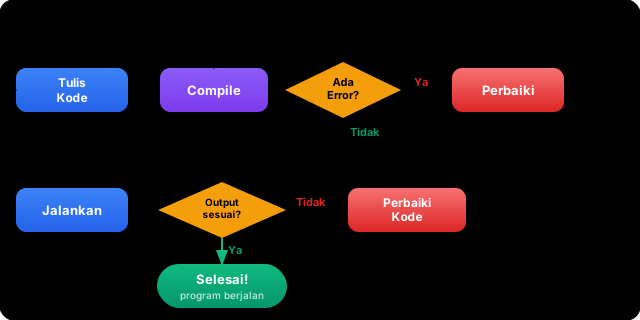
↓
Done!Don’t worry if you encounter errors frequently — that’s completely normal. Even experienced programmers spend a lot of time debugging (finding and fixing errors). The key: read error messages carefully — the compiler usually tells you which line the problem is on.
Compile Command
Programming Workflow Order
Summary
- The website playground is the fastest way to start learning
- Local installation (MSYS2/MinGW) is ideal if you want a more serious setup
- Online compilers serve as a backup when other options aren’t available
- The programming workflow: write → compile → debug → run → repeat
- Errors are normal and are part of the learning process
In the next lesson, we’ll take a tour of this website’s playground so you know all its features and are ready to start coding!